
The Garden Studio FAQs
I'm having trouble logging in.
Try using the "Reset password" link first. It should send a link to the email you used when you signed up that will allow you to enter a new password.
Sometimes customers have trouble with that link. The course website works with your browser to automatically sign you in to help speed up your access. It stores some information about that page, (i.e. cookies & cache) and sometimes it actually can actually create an obstacle to accessing the page.
To help resolve this issue, please follow the steps below:
- Clear your browser's memory (called "cache" and "cookies"):
- In your browser's settings, look for an option like "Clear browsing data"
- Choose to clear both "Cached images and files" and "Cookies."
- If you're not sure how to do this, try searching online for "How to clear cache and cookies in [Your Browser Name]"
- Close the browser window.
- Open a new browser window and navigate to your course using the links above.
- Click Forgot Password.
- Follow the link in the email you receive.
This should allow you to reset your password. Once that is done, you'll be able to log in on any device by going to the course and putting in your email and new password.
How do I find the traceable images or class workbook?
Usually the downloadable project workbook is attached to the first video of the course series. Open the video, and then beneath the video player and title you will see an "Attachments" tab. Click on that, and you will see a workbook download if one is available for that particular class. Traceables will be in the workbook, with instructions on how to trace your image.
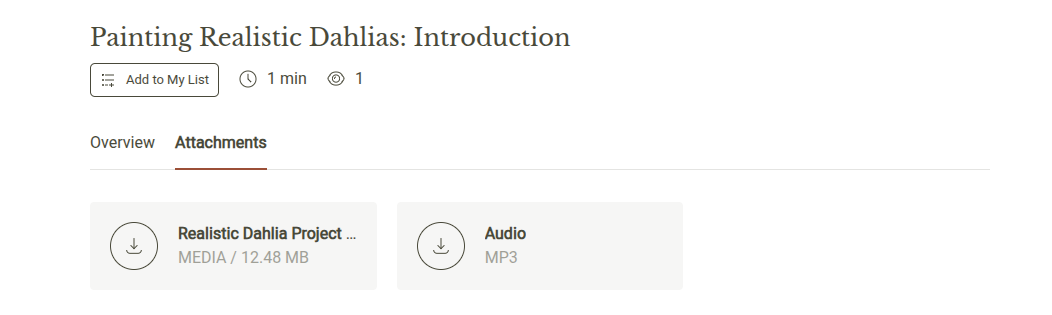
Please note: not all classes have traceable images available. Notably, any sort of loose painting won't have a traceable image, since Alex will be showing you how to draw with your brush without drawing in advance.
The video isn't working.
Almost all technology glitches can be resolved by restarting your computer and your Internet connection.
Here are a few recommended steps you can take:
- Restart your internet:
- Unplug your internet router (the box that gives you WiFi)
- Wait for about 30 seconds
- Plug it back in and wait for it to fully restart (usually takes a few minutes)
- Try watching the video again
- If that doesn't work, restart your computer:
- Close all programs
- Turn off your computer completely
- Turn it back on and try the video again
- If you're still having trouble, try these steps:
- Clear your browser's memory (called "cache" and "cookies"):
- In your browser's settings, look for an option like "Clear browsing data"
- Choose to clear both "Cached images and files" and "Cookies"
- If you're not sure how to do this, try searching online for "How to clear cache and cookies in [Your Browser Name]"
- Clear your browser's memory (called "cache" and "cookies"):
- Try a different web browser:
- If you usually use Internet Explorer or Firefox, try using Google Chrome or Safari instead
- You can download Chrome or Safari for free if you don't have them
To update your billing information:
- Log into the membership hub by clicking here.
- Click on your profile image in the top right corner.
- Select "Billing" from the dropdown menu.
- To update your billing information, go to "billing" and click on your payment plan under "manage your subscriptions below"
- Under "payment method", click on "add payment method"
Here is a video from the membership hub walking you through the steps above.
For failed payments:
- Follow the steps above
- Scroll down until you can see the failed payment
- Click on the failed payment
- You’ll be directed to a page where you can pay the outstanding amount
How To Cancel Your Membership
We are sorry to see you go, but we are happy to help walk you through the cancellation process. Please take a moment to read through the following instructions for canceling your subscription.
Before you make your final decision, please note that if you cancel, you will no longer be locked into your current price. If you wish to rejoin in the future and our prices have increased, you'll need to subscribe at the new, higher rate. Once you cancel, you will continue to have access to the Facebook Group and the Hub Resources until the end of your billing period.
Option 1: Cancel In The Membership Member Hub
If you prefer video instructions, click here to watch a quick tutorial on the process.
Here are the steps to do it yourself:
1. Log into your profile, click on your picture on the top right and select "Billing" from the dropdown menu.
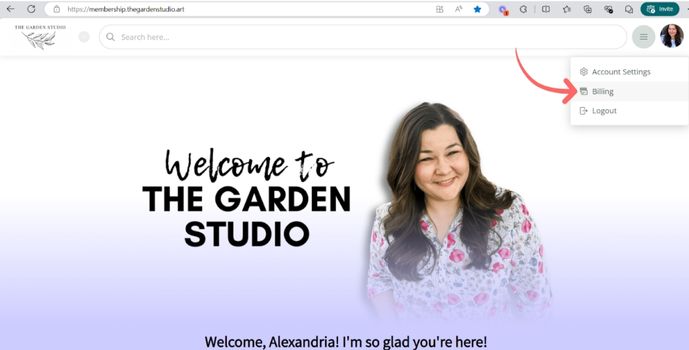
2. Click anywhere on the gray box and it will bring you to your subscription information.
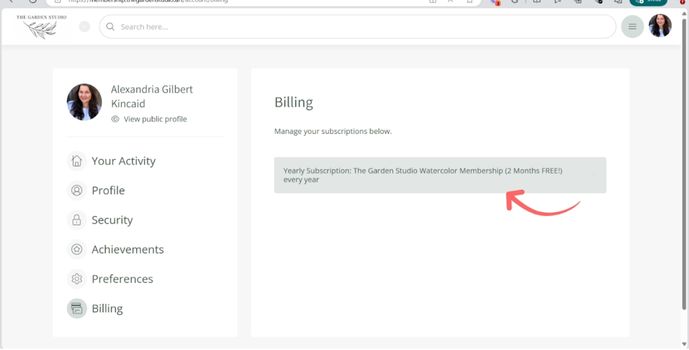
3. On the subscription information page, click Cancel plan and then follow the prompts.
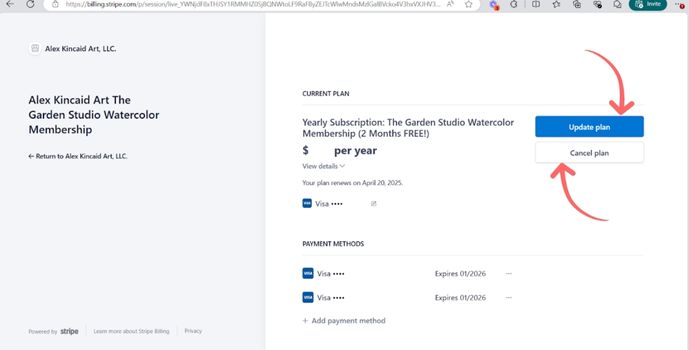
Important Note: Please double-check that your subscription has canceled. After you have processed your cancelation, your billing information will change from "your plan renews on [date]" to "your plan will be canceled on [date]".
Option 2: We process the cancellation for you
If you're unable to cancel on your own, we're happy to assist! Simply reach out to our support team at support@alexkincaidart.com at least three business days before your renewal date, and we'll take care of the cancellation for you to ensure no further charges are applied.